

Best Practices
Role Responsibilities
Developers/Issue Creators:- Create issues with migration scripts but do not handle rollouts directly
- If timing requirements exist, specify them in one or more of these locations:
- Issue title (e.g., “DB Migration - Deploy during maintenance window”)
- Issue description with detailed timing constraints
- Labels (e.g.,
rollout:night,rollout:maintenance-window) - Comments explaining why specific timing is needed
- Review rollout timing requirements provided by issue creators
- Determine the actual rollout schedule based on:
- Business impact assessment
- System maintenance windows
- Traffic patterns and downtime considerations
- Dependencies on other deployments
- Execute the scheduled rollout at the determined time
Scheduling a Rollout
When you roll out a task, choose Schedule for later and pick a date and time — the task starts automatically at that time. Choose Run immediately to start it right away. The time you pick is interpreted in your browser’s local time zone. There is no time zone selector. After you schedule it, the pending task states the resolved time and its zone, so you can confirm which one applied — for example, Waiting to execute after Aug 4, 2026, 2:22:15 PM GMT+2.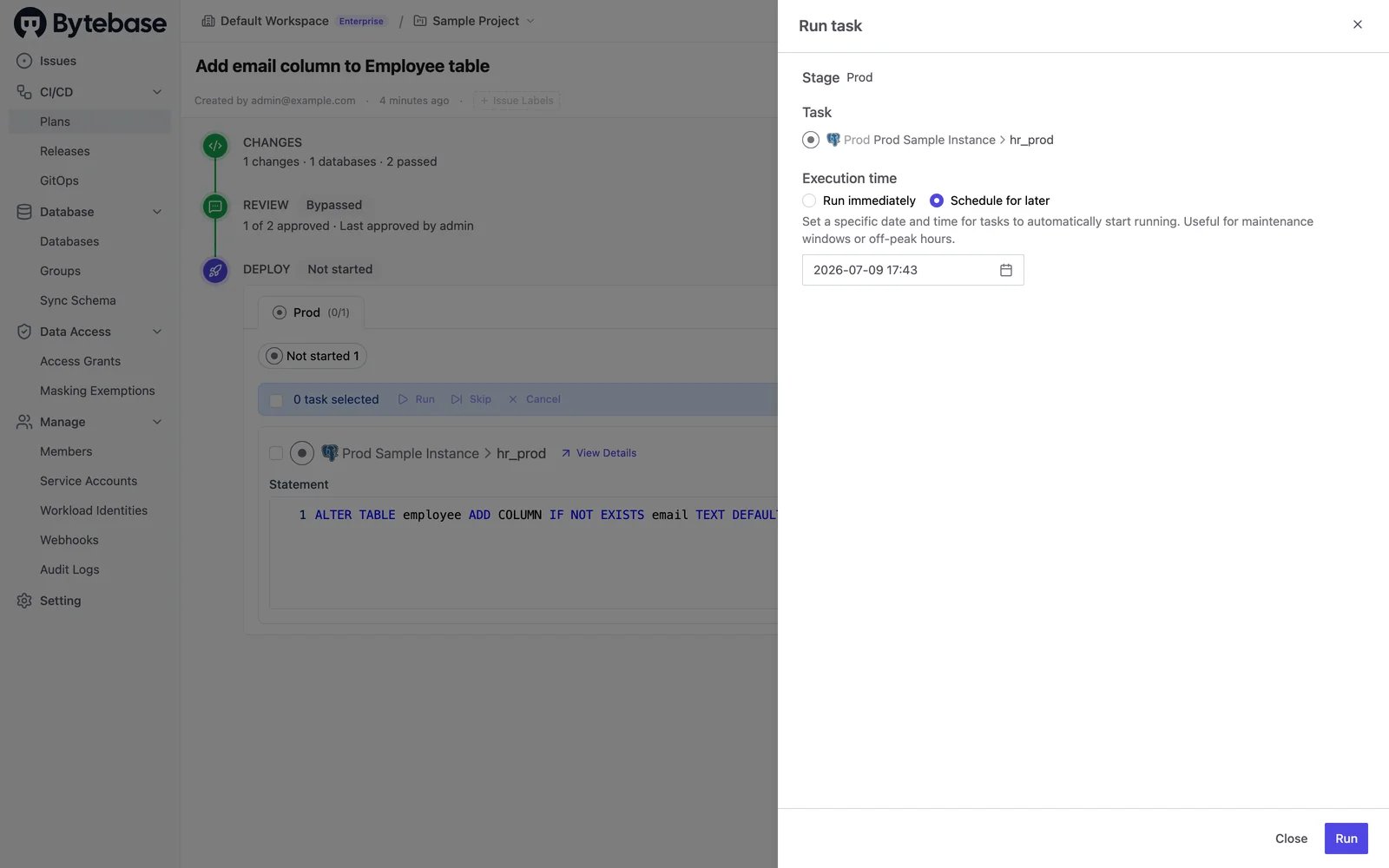
The SQL statement is fixed once a rollout is created. Cancelling only stops the scheduled run — it doesn’t unlock the statement for editing. To change the SQL, create a new change.
Workflow Summary
-
Issue Creation:
- Developer creates issue with complete migration script
- Optionally specifies timing requirements in title, description, or labels
- If timing is critical, provides justification for specific timing needs (e.g., maintenance window, low traffic period)
-
Review & Approval:
- Approver reviews the migration script for correctness and safety
- Validates timing constraints and business impact
- Approves the issue once technical and timing requirements are satisfied
-
Task Execution:
- By default, executes task immediately upon action
- Releaser can choose to schedule the task for a specific time based on:
- Issue creator’s timing requirements
- Operational constraints (maintenance windows, traffic patterns)
- Business impact considerations