

Tutorial: Manage Database Change with 1-Click Data Rollback
Backup data is stored within your own database instance in a dedicated
bbdataarchive location. Bytebase does not automatically purge this backup data, so you can manually clean up the bbdataarchive database or schema as needed.Supported Databases
Supported Operations
Prior backup is feasible when meeting all of the following conditions:UPDATEorDELETE- No mixed
UPDATE/DELETEon the same table. - The SQL statement size is less than 2M.
- No mixed DDL/DML.
- For
UPDATE, the changed table has primary key and primary key columns are not updated.
Enable Prior Backup
You can enable the Prior Backup option either before or after creating a database change issue.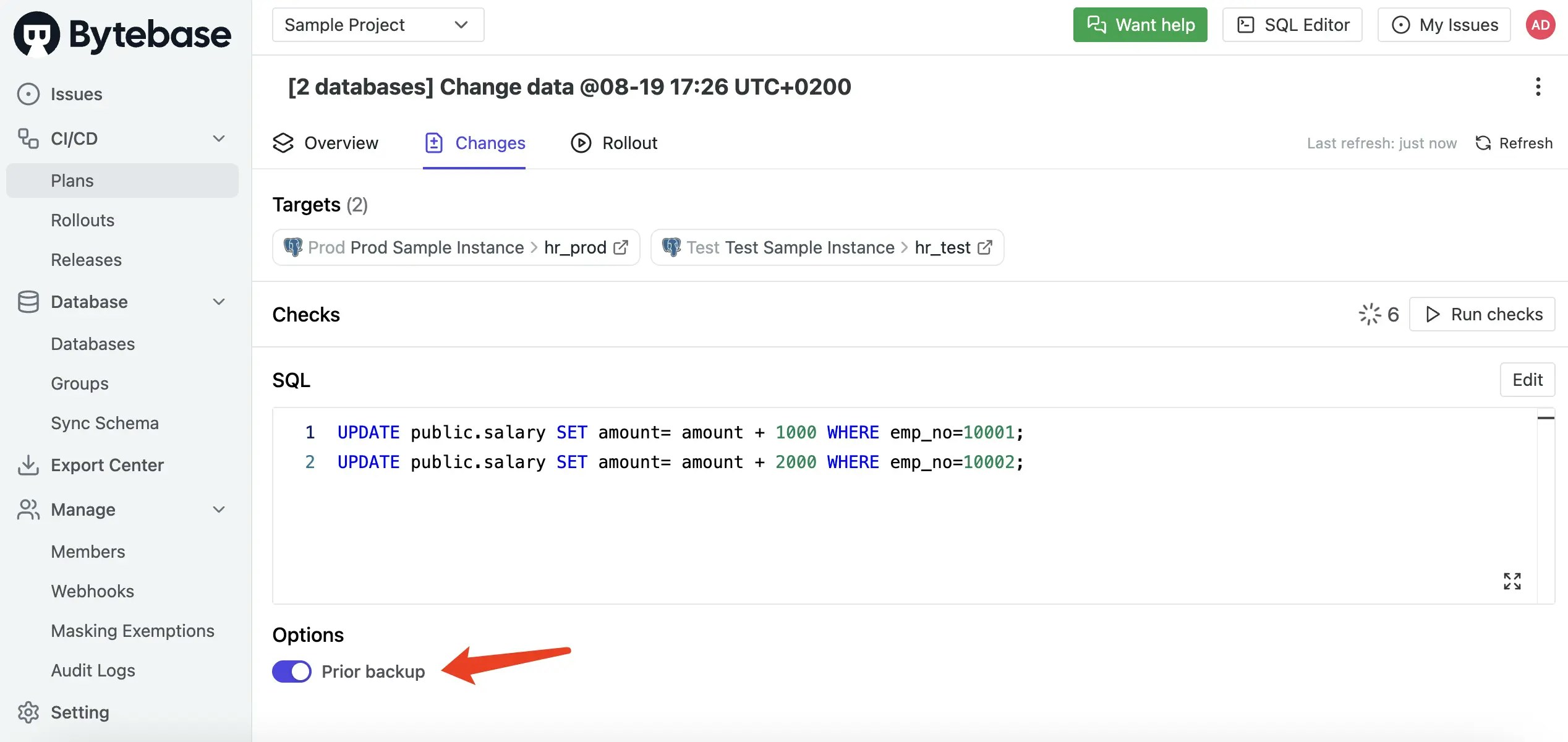
If the Prior Backup switch appears disabled, navigate to the database page and click Sync
instance to refresh the database metadata.
Perform 1-Click and Multi-Task Rollback
-
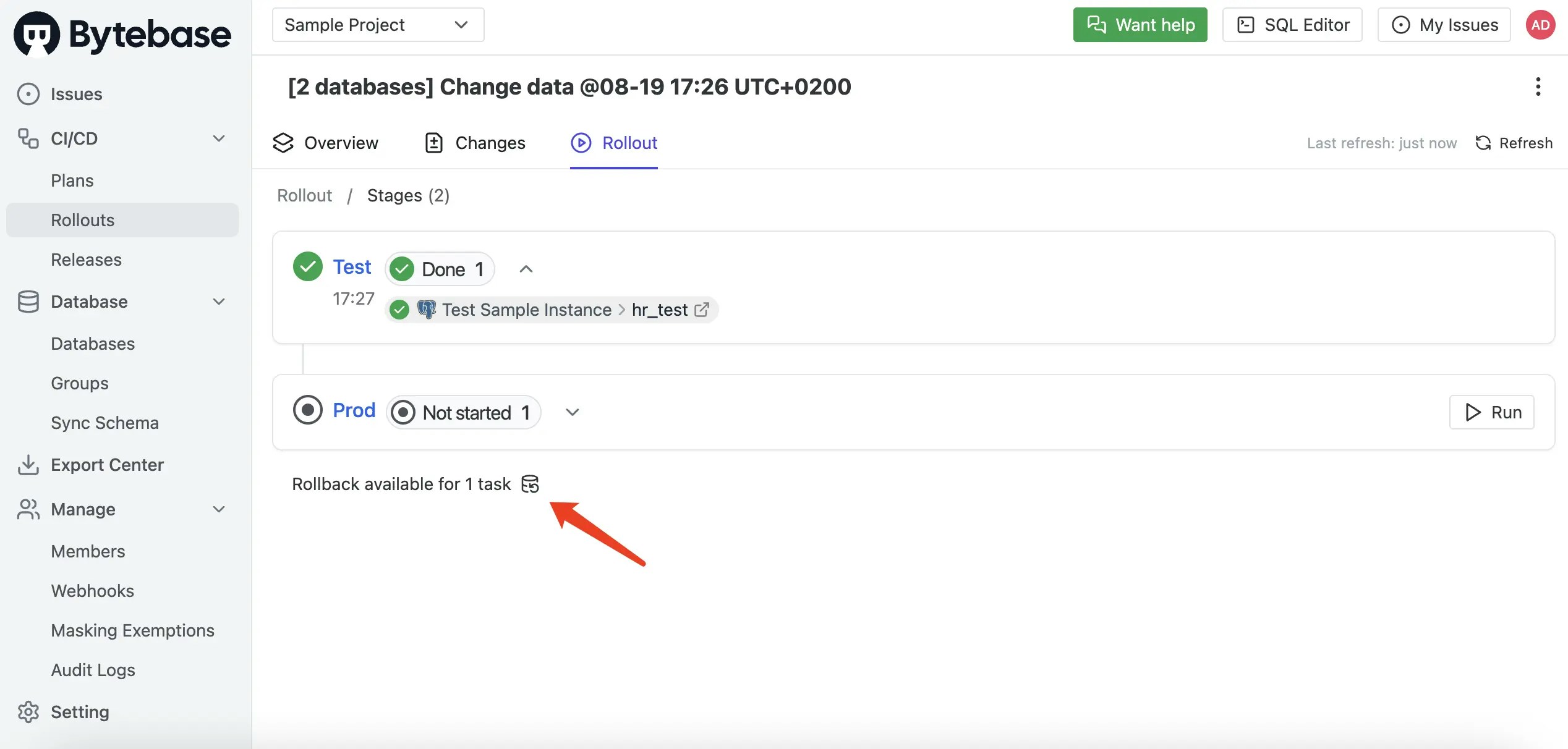
After your database change has been successfully deployed, click the Rollback available link to initiate the rollback process.
-
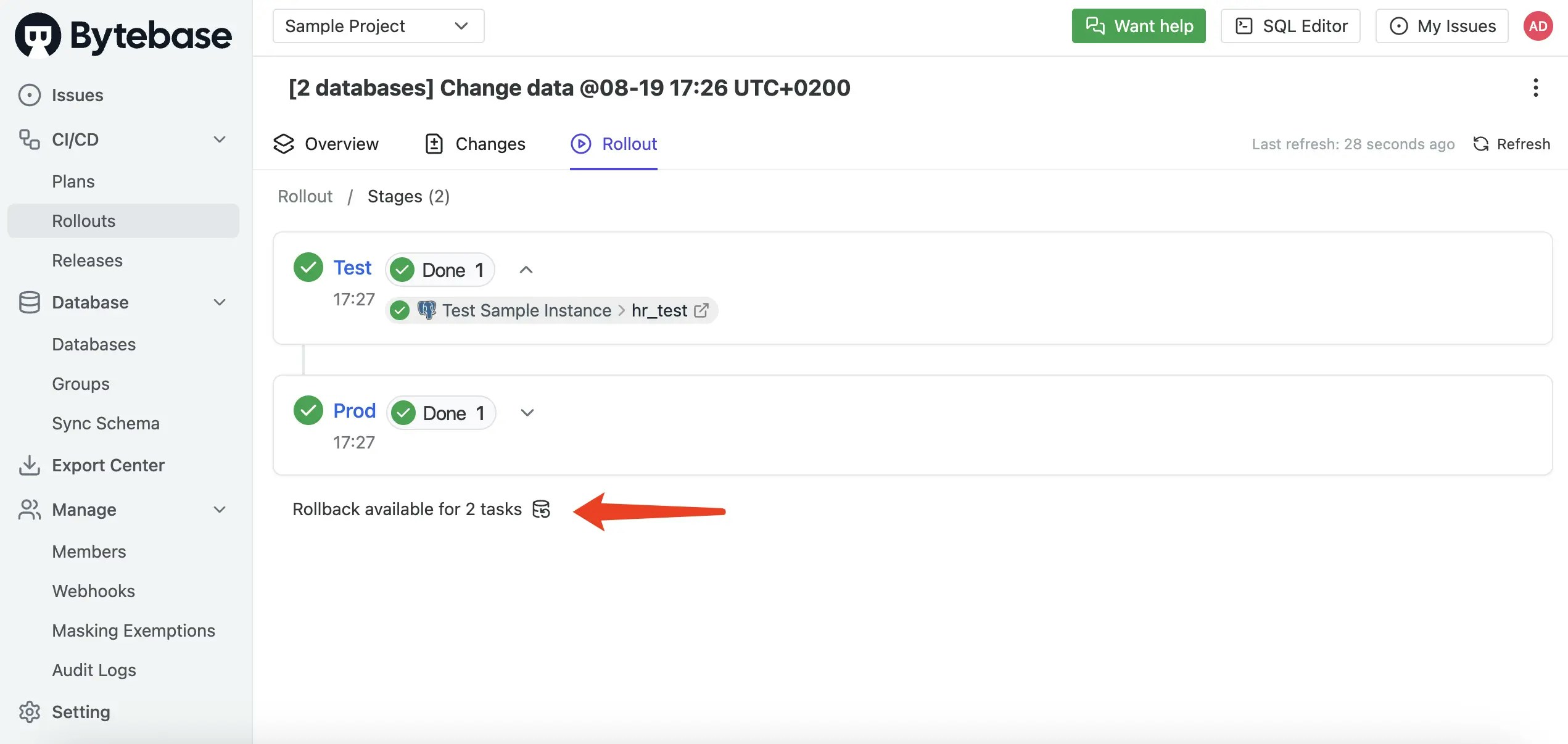
You may see multiple rollbackable changes available, depending on your deployment scenario.
This could include a single change applied to multiple databases, multiple changes to one database, or a combination of both scenarios.
-
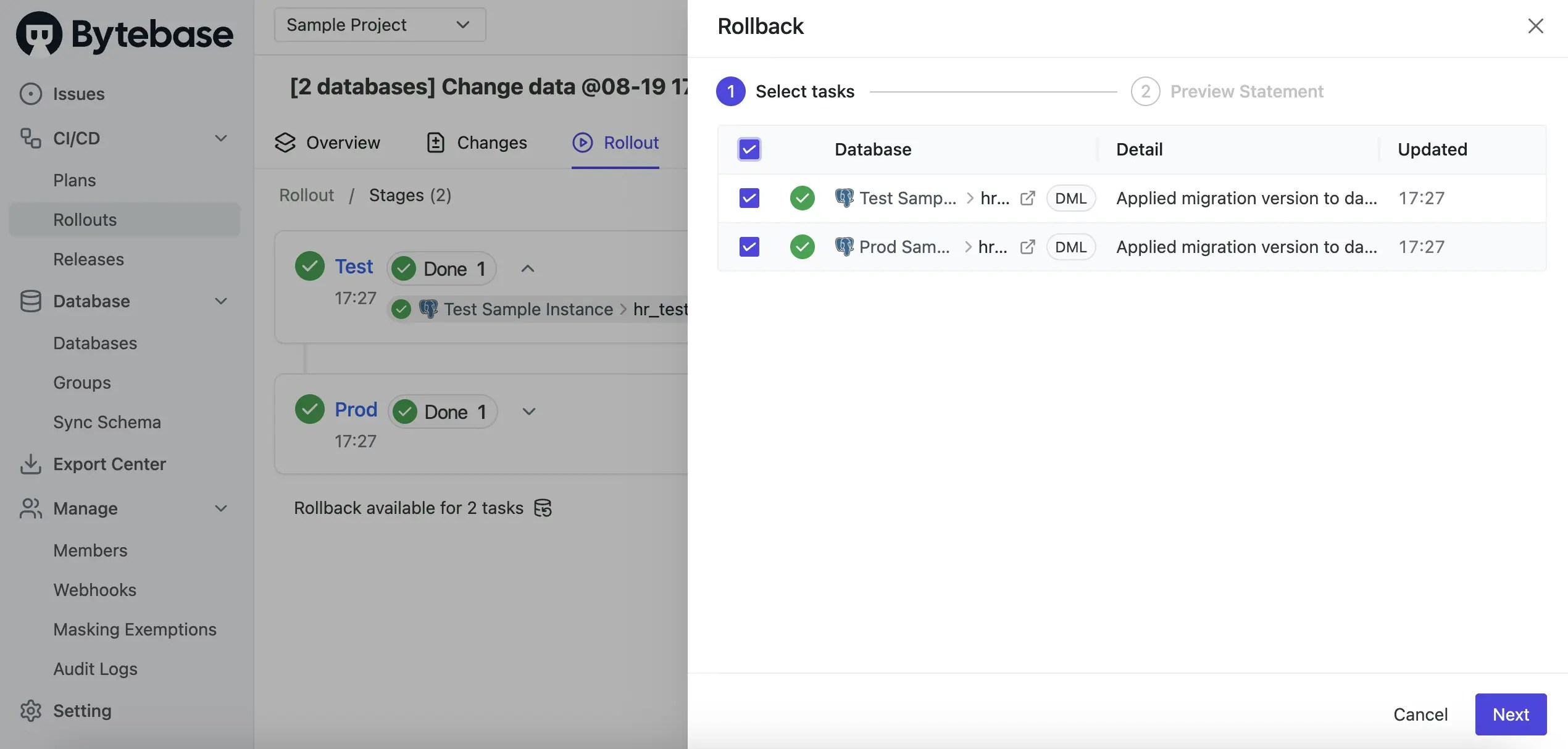
Select which changes you want to rollback - you can choose individual changes or rollback all of them at once. This multi-task rollback capability allows you to efficiently revert multiple related changes in a single operation.
-
Bytebase automatically generates the appropriate rollback SQL statements based on the backup data.
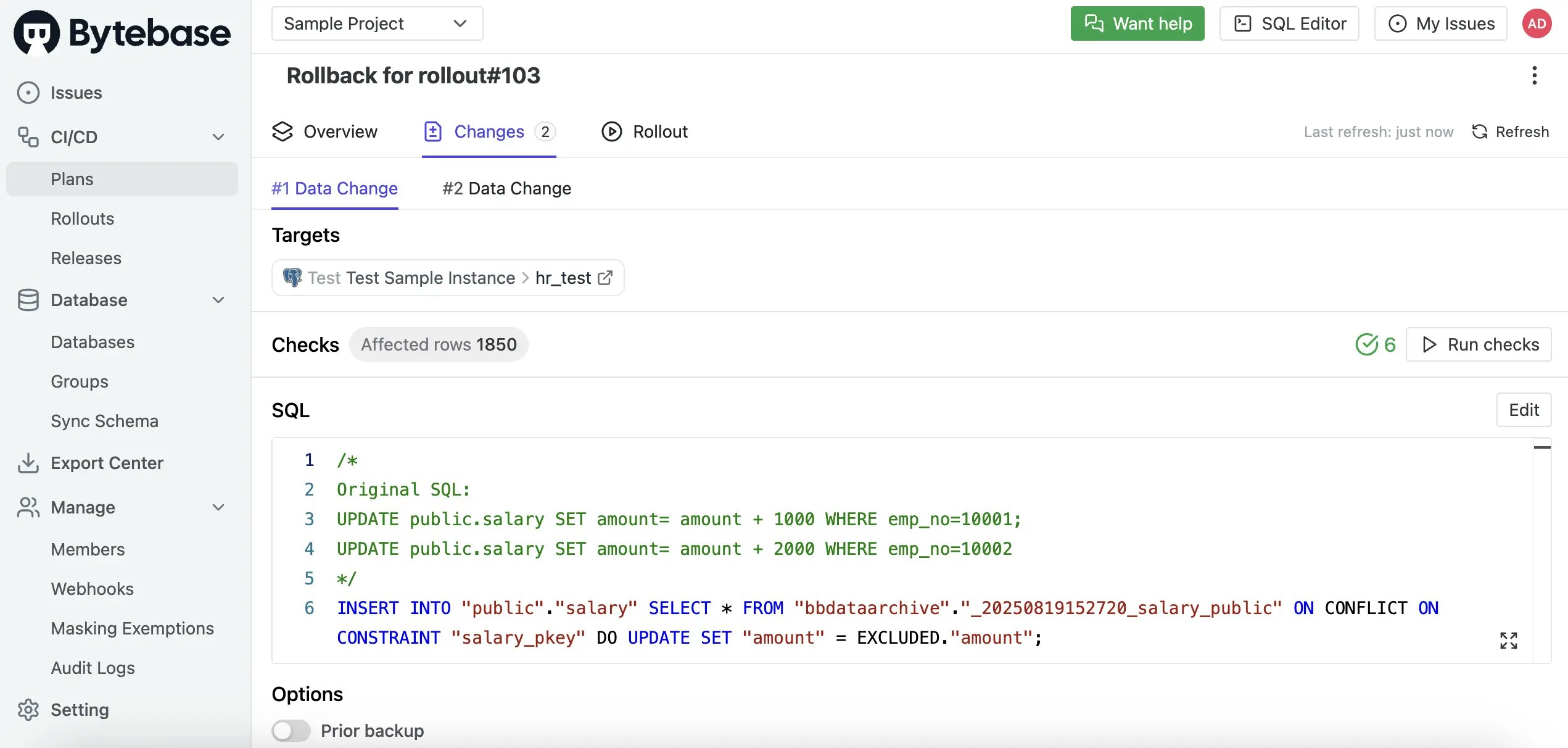
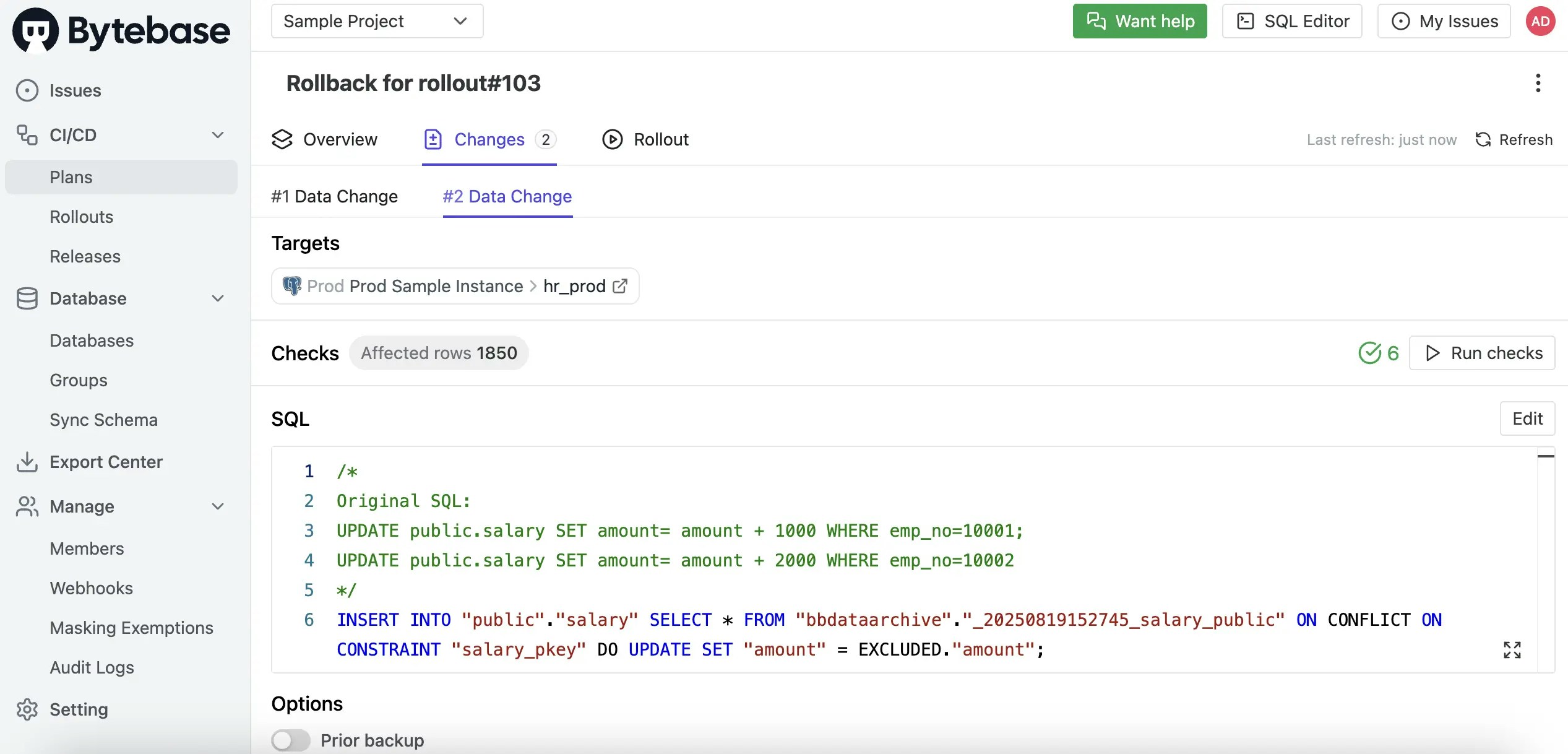
Inspect Backup Data
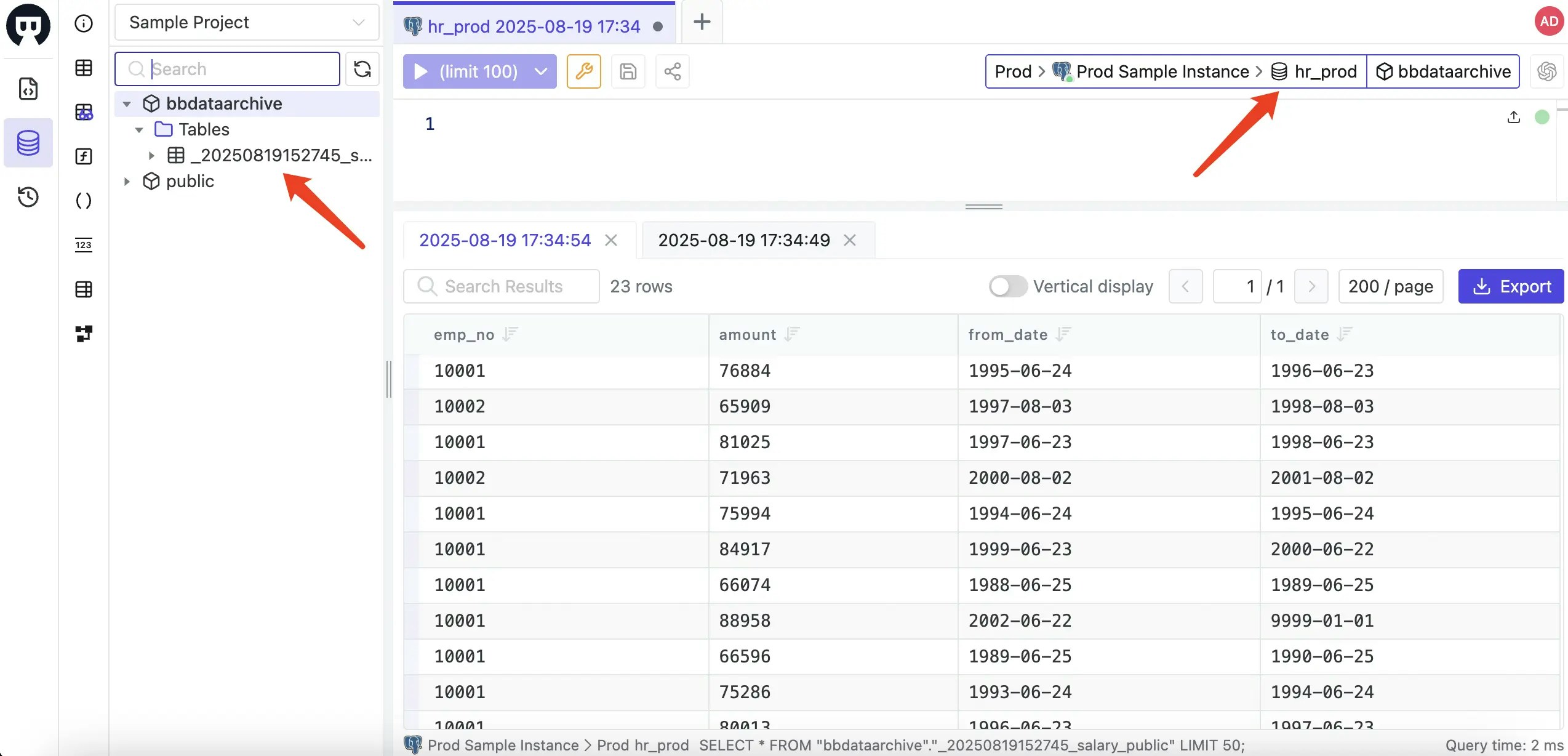
You can examine the stored backup data using Bytebase’s SQL Editor to verify what information has been preserved.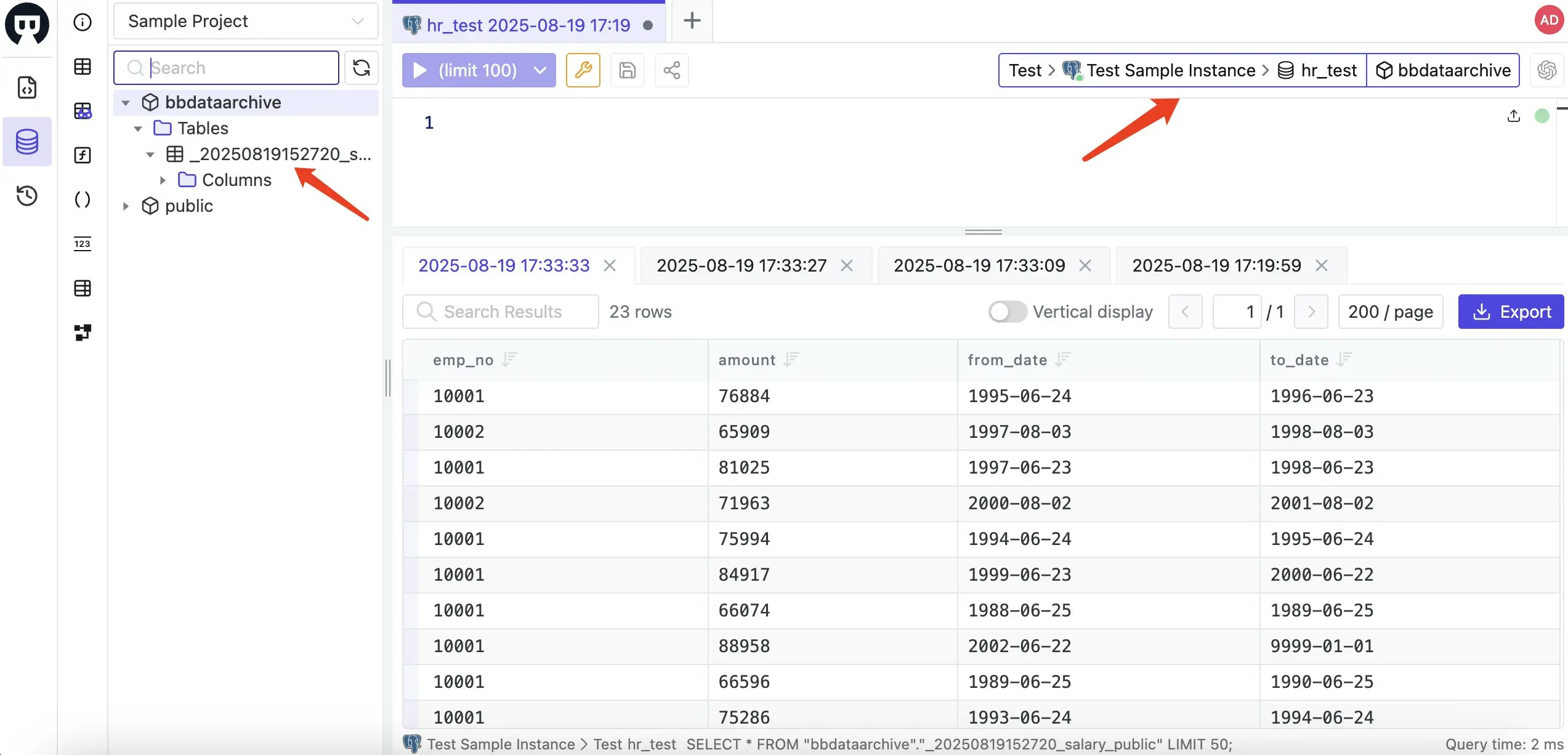
Appendix: Setting Up bbdataarchive
Before using Prior Backup functionality, you must create the bbdataarchive storage location in your database instance. Follow the instructions for your specific database engine:
MySQL, MariaDB, and TiDB
These MySQL-compatible engines share the same setup.-
Create the backup database:
-
Grant necessary privileges:
Replace
your_userwith the actual username that Bytebase uses to connect to your database.
PostgreSQL
-
Create the backup schema:
-
Grant necessary privileges:
Replace
your_userwith the actual username that Bytebase uses to connect to your database. -
If using
SET ROLE, grant permissions to that role: Replaceyour_rolewith the role used inSET ROLE.
Oracle
-
Create the backup user:
-
Grant connection privileges:
-
Grant unlimited space quota:
Replace
tablespace_namewith your actual tablespace name. -
Grant privileges to the instance administrator:
Replace
admin_userwith the actual username that Bytebase uses as the instance administrator.
SQL Server
-
Create the backup database:
-
Grant necessary privileges:
Replace
your_userwith the actual username that Bytebase uses to connect to your database.