

New to the Bytebase MCP server? Follow the Connect an AI Assistant to Bytebase with MCP tutorial for a hands-on walkthrough.
Prerequisites
-
Configure the external URL. Bytebase uses it to tell the AI assistant where to sign in, and binds each MCP token to it. Without it, sign-in fails. A local address such as
http://localhost:8080works for a client on the same machine, such as Claude Code. Otherwise, use a public address your AI assistant can reach. - The workspace access policy must not be Disabled. A new workspace starts at Read-only.
Connect a client
The Integration > MCP page in your Bytebase console has a tab for each client:- Claude Code, Codex, Copilot CLI, Gemini CLI, and VS Code each get a one-line command.
- Claude Desktop gets the endpoint URL. Add it as a custom connector under Customize > Connectors on claude.ai.
- JSON gets a configuration snippet for other clients:
Sign in
Bytebase authenticates MCP clients with OAuth. When your client signs in, your browser opens to Bytebase. In Claude Code, run/mcp, select the server, and choose Authenticate. Sign in, then review the authorization page. It names the workspace, shows the workspace access policy as it is now, and lists what the session may do. Click Allow (Allow access on Bytebase Cloud) to connect.
If the page says MCP access is turned off, ask a Workspace Admin or Workspace DBA to change the access policy.
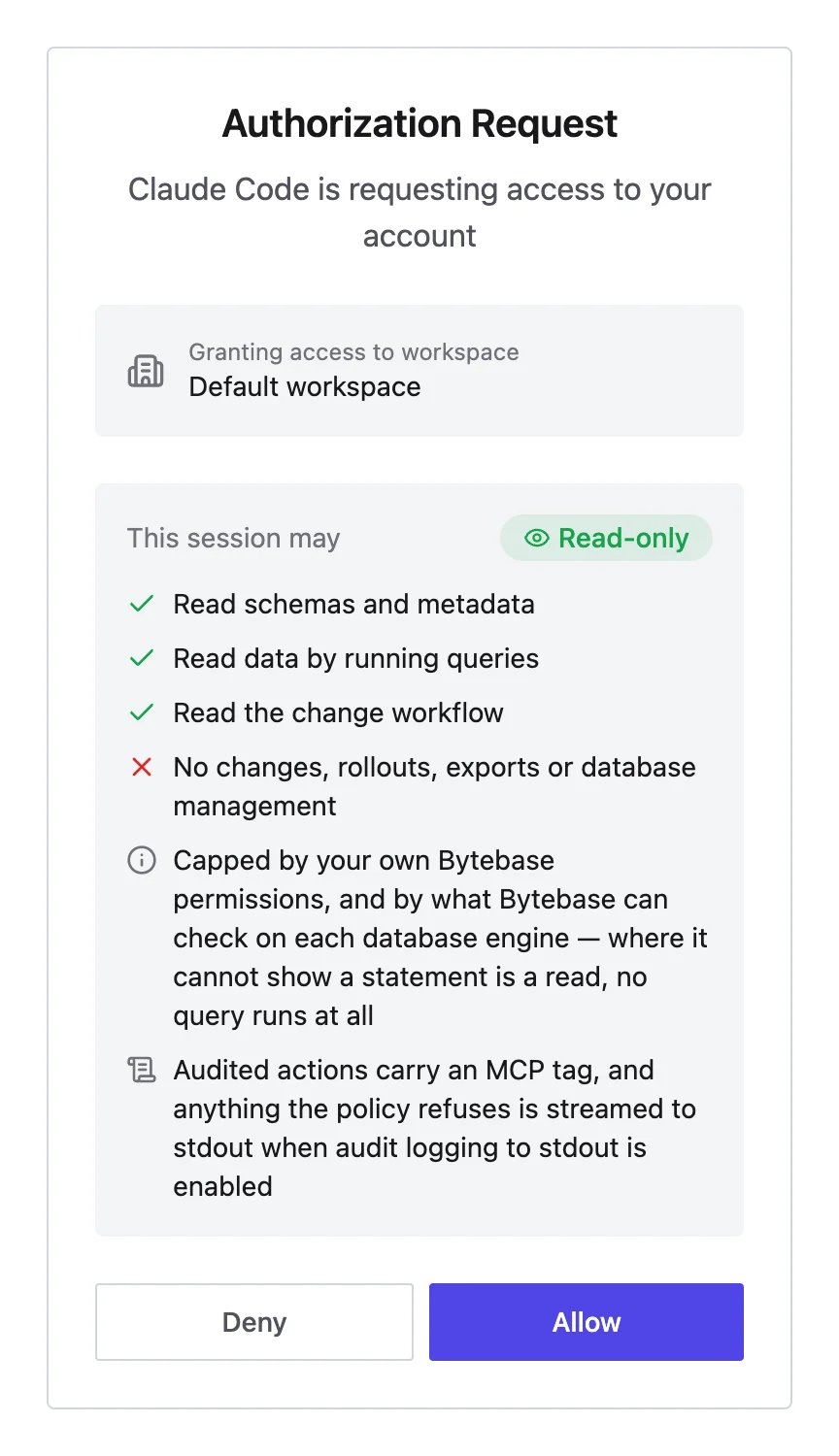
/mcp. It is not an API credential: the rest of the Bytebase API refuses it. Use a service account for API access.
If you change the external URL, existing tokens stop working at /mcp. Refreshing does not help, because the refreshed token is still bound to the old URL. Remove and re-add the MCP server in each client, then sign in again.
Try it
Once connected, ask your AI assistant something that only reads, which works under Read-only:- “List all projects in my Bytebase instance”
- “Show me the schema of the
<database>database”
Access policy
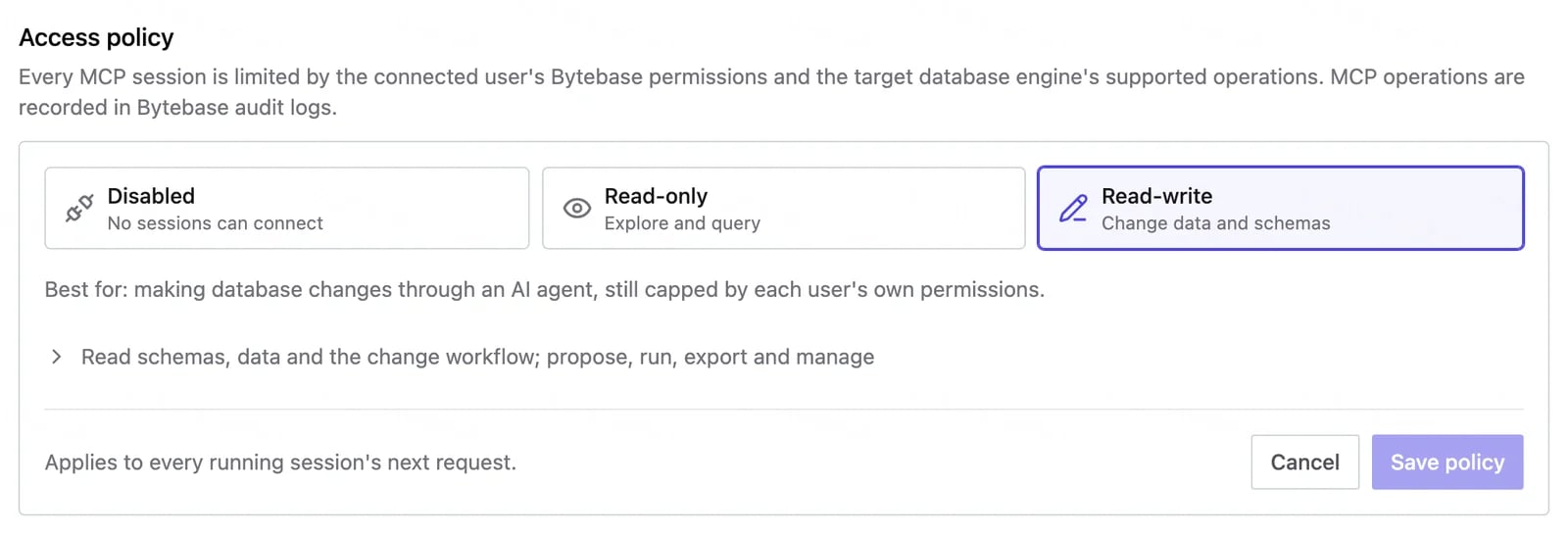
The access policy is the most any MCP session may do in the workspace. Each session is also limited by the signed-in user’s own Bytebase permissions. The policy only narrows those permissions; it never grants any. The policy has one of three modes:
Bytebase saves Read-only for every new workspace. A workspace created by an older version may have no saved policy. It runs at Read-write until someone saves one, so check the mode after you upgrade.
A policy change applies to the next request of every session, including sessions that are already connected, and to the authorization page from then on.
Set the access policy
Requires the
bb.settings.set permission. The Workspace Admin and Workspace DBA roles have it.- Go to Integration > MCP.
- Under Access policy, click Edit policy.
- Select a mode and click Save policy.
Set or read the access policy through the API
Set or read the access policy through the API
Set the mode:
<access_token> is an API token for a user or service account with the bb.settings.set permission, not the MCP token. The values are DISABLED, READ_ONLY, and READ_WRITE.To read the mode in force, call GET /v1/actuator/info with an API token and read mcpSetting. Use this endpoint, not GET /v1/settings/MCP, which answers 404 on a workspace with no saved policy.Read-only queries
Under Read-only, Bytebase checks every statement in a query before it runs. It refuses the whole request unless every statement is a read that returns data. Statements that return no data, such asSET and USE, are refused, because they change the session the rest of the request runs on.
On MongoDB, Elasticsearch, and Databricks, Bytebase cannot show that a statement is a read, so no query runs under Read-only.
Read-write changes
Under Read-write, the assistant can change data and schemas two ways:- Propose a change. The change tool (
propose_database_change) creates a sheet, a plan with plan checks, and an issue. The issue follows the project’s review and rollout flow. - Run a statement directly. The query tool (
query_database) runsINSERT,UPDATE,DELETE,CREATE,ALTER, andDROPwithout an issue, within your permissions. This works on MySQL, PostgreSQL, Oracle, SQL Server, TiDB, Snowflake, Spanner, BigQuery, MongoDB, and Elasticsearch.
Access requests and approvals
Under Read-write, an assistant can also take an access request from start to finish, within your permissions and the project’s approval rules. The mode grants nothing on its own: an assistant can request, approve, or change only what you could in the console.- Request an access grant. The assistant files a just-in-time access grant for one read-only statement on one database, with optional unmasked or exportable results, a reason, and a duration counted from approval. The project must have Allow access grants on. A person approves the request in Bytebase; once approved, the assistant reruns the statement, and
appliedAccessGrantin the query result names the grant. - Approve or reject. The
decide_issuetool approves or rejects a database change issue or an access request at its current step. Role requests cannot be decided over MCP. - Change project access settings. The
set_just_in_time_accesstool turns a project’s Allow access grants on or off. Thegrant_masking_exemptionandrevoke_masking_exemptiontools manage masking exemptions. An assistant can also revoke an active access grant. - See who can approve. In every mode, the assistant can read a project’s and the workspace’s IAM policy, groups, and roles, so it can tell who holds a reviewer role. It cannot read the approval rules themselves.
CONFIRMATION_UNAVAILABLE error with a link to decide in the console, and nothing changes. Requesting an access grant needs no confirmation form, because a person approves it in Bytebase.
Workspaces on Read-write get these capabilities when they upgrade to 3.24.0. To stop assistants from approving, switch the access policy to Read-only.
What no mode allows
In every mode, an MCP session cannot:- Change workspace settings, including the MCP access policy itself.
- Mint, reset, or rewrite credentials, its own or anyone else’s.
- Read or change users, identity providers, service accounts, workspace settings, billing, or the audit log.
- Change groups, roles, or IAM policies, or create or delete workspace policies. Reading them is allowed, so the assistant can tell who holds a reviewer role. The only policy an assistant can change is masking exemptions, through the exemption tools.
- Create, change, or delete projects and instances, or manage project webhooks. Reading project and instance details is allowed.
- Open an Admin mode session in SQL Editor.
- Read other people’s query history.
- Send data to a third party through a stored workspace credential, such as Bytebase’s built-in AI chat, which uses the workspace AI API key, or a webhook test.
- Request a role through an issue, or decide a role request. Only database change issues can be created over MCP; access is requested as an access grant, not through an issue.
Masking
Query results honor your data masking policies on the engines Bytebase masks: MySQL, PostgreSQL, Oracle, SQL Server, MariaDB, OceanBase, TiDB, BigQuery, Spanner, Redshift, Cassandra, Trino, MongoDB, Cosmos DB, and Elasticsearch. On other engines, the assistant sees real values. Masking needs the Enterprise plan. A query result names each masked column with its semantic type, algorithm, and the reason it was masked, so the assistant can request unmasked access for the columns it needs instead of guessing. Masked columns are not named on MongoDB, Cosmos DB, and Elasticsearch.****** is the value Bytebase shows for a fully masked cell. In every mode, Bytebase refuses any MCP query or change whose SQL contains it, so the assistant does not copy masked values back over real data. The check reads the SQL text only.
By default, your own masking exemptions apply to your MCP sessions too. To withhold them, click Edit policy under Access policy, turn on Ignore masking exemptions, and click Save policy. The switch is hidden while Disabled is selected. MCP sessions then see masked data even for users with masking exemptions or unmask grants, while the console is not affected. It does nothing on engines Bytebase does not mask, or where data masking is not licensed.
Set Ignore masking exemptions through the API
Set Ignore masking exemptions through the API
Audit
Bytebase records MCP activity in the audit log under the signed-in user. Each MCP entry records the OAuth client, the scope approved at sign-in, the MCP endpoint URL, and a correlation ID. Every call in one MCP session shares the same correlation ID. Queries, exports, proposed changes, and rollouts are logged. Schema and metadata reads are not. Most refused calls are not stored in the audit log; on self-hosted Bytebase, turn on audit logging to stdout to record them. Searching the audit log needs the Pro or Enterprise plan.Which MCP calls the audit log stores
Which MCP calls the audit log stores
Bytebase logs a call to an audited method once the call passes the access policy and your permissions.A call refused before it runs is not stored. That covers refusals by the access policy, by the list of things no mode allows, and by the
****** check. Refusals made while a call runs are stored, such as a query that Read-only refuses. A connection or sign-in refused while MCP is Disabled is stored too.To record the other refusals, turn on Enable audit logging to stdout (see Streaming). This needs self-hosted Bytebase with an Enterprise license, or an existing self-hosted Pro license. Bytebase Cloud cannot stream audit logs.Filter MCP entries in the audit log API
Filter MCP entries in the audit log API
mcp == truefor the entries MCP produced,mcp == falsefor the rest.mcp_correlation_id == "<id>"for one MCP session. A refused connection or sign-in has no correlation ID.
How changes work
A few behaviors are worth knowing before you work through an AI assistant:- One database per change. A proposed change targets a single database. For changes across multiple databases, the assistant uses the batch workflow and the underlying APIs.
- Each change creates a new issue. A proposed change always creates a fresh sheet, plan, and issue — it does not edit an existing one. Iterating on SQL across several turns produces multiple issues, so settle on the statement before proposing, and close any superseded issues.
Limitations
- No dry-run tool. The change tool always creates a change. Plan checks (SQL review, DDL simulation) run when it creates the plan.
- Query results are capped. Queries return 100 rows by default and 1,000 at most, with a 30-second timeout. Larger result sets are truncated.
- Schema output is capped. Schema inspection returns up to 200 tables per schema when it includes columns or details; the default summary lists every table. Narrow it with a schema or table name.
-
HTTP transport only. The server is reached over the
/mcpHTTP endpoint; stdio transport is not supported. - Request size is capped. Bytebase refuses requests over 4 MiB with HTTP 413. Send very large migration statements through the console instead.